Guided setup
HITBOXES TAB
The first time you open Modulanner, a short "Welcome" screen shows what is in this version. Tap Set up Modulanner and a walkthrough takes you from a blank template to a working planner. You can run it again any time from Settings, Guided setup, Guide me through setup.
First: how do you want to get around?
The walkthrough opens with one question, and your answer decides the rest.
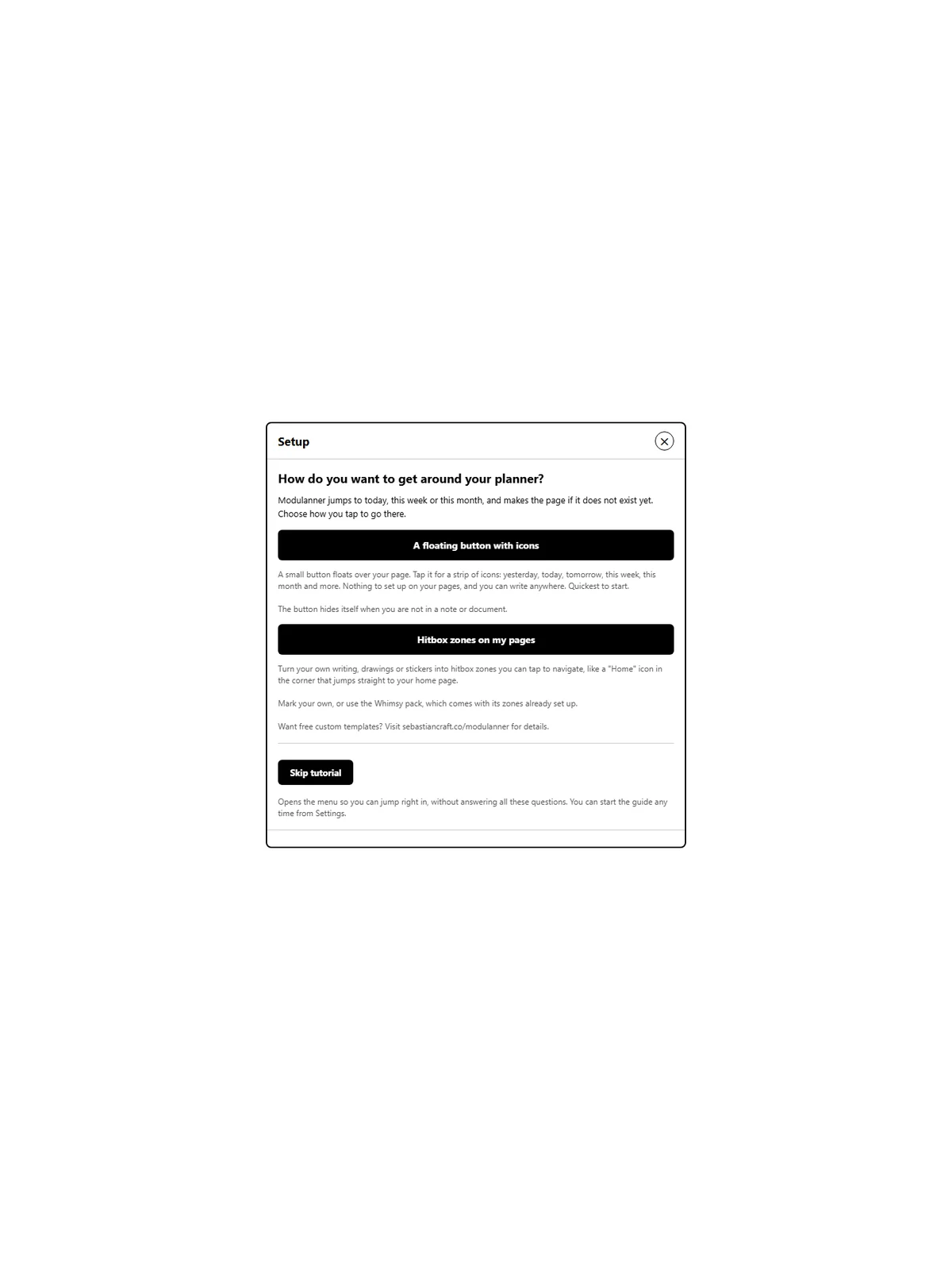
- A floating button with icons: a small button floats over your page, and tapping it opens a strip of icons. Nothing to mark on your pages. Quickest to start.
- Hitbox zones on my pages: turn your own writing, drawings or stickers into zones you can tap to navigate, like a "Home" icon in the corner. Mark your own, once per template, or use the Whimsy pack, which comes with its zones already set up.
You can change your mind later: the floating button is on the Options tab, and your hitbox zones are on the Hitboxes tab.
The floating button route
-
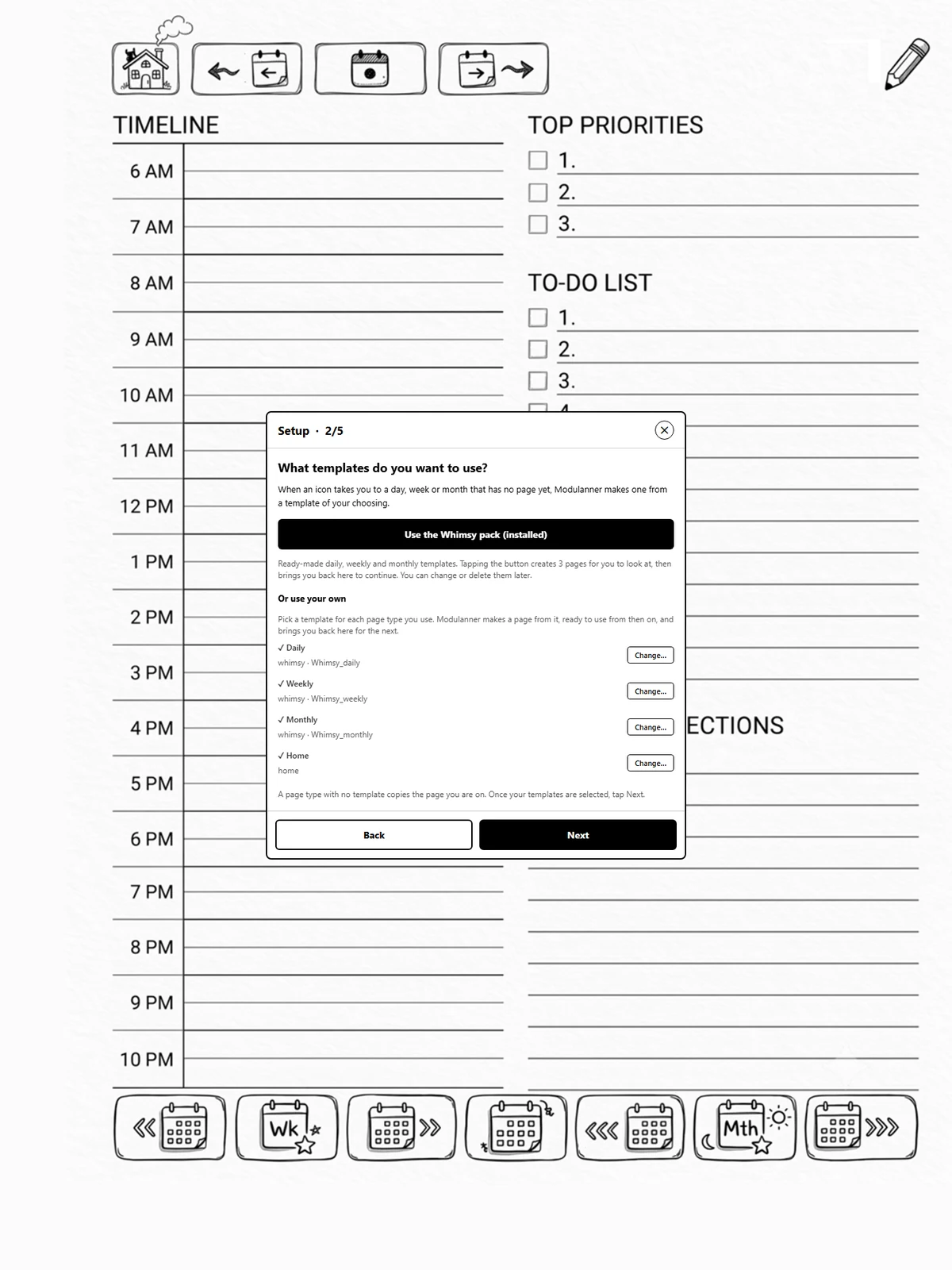
What templates do you want to use? When an icon takes you to a day, week or month with no page yet, Modulanner makes one from a template. Choose the Whimsy pack, which makes a daily, weekly and monthly page so you can see them, or pick your own template for each kind of page. Each one makes a page and brings you back to this step, where a ✓ shows which kinds are done. Tap Next when you have the ones you want.
-
Week start: which day your week begins on. The week icons depend on it.
-
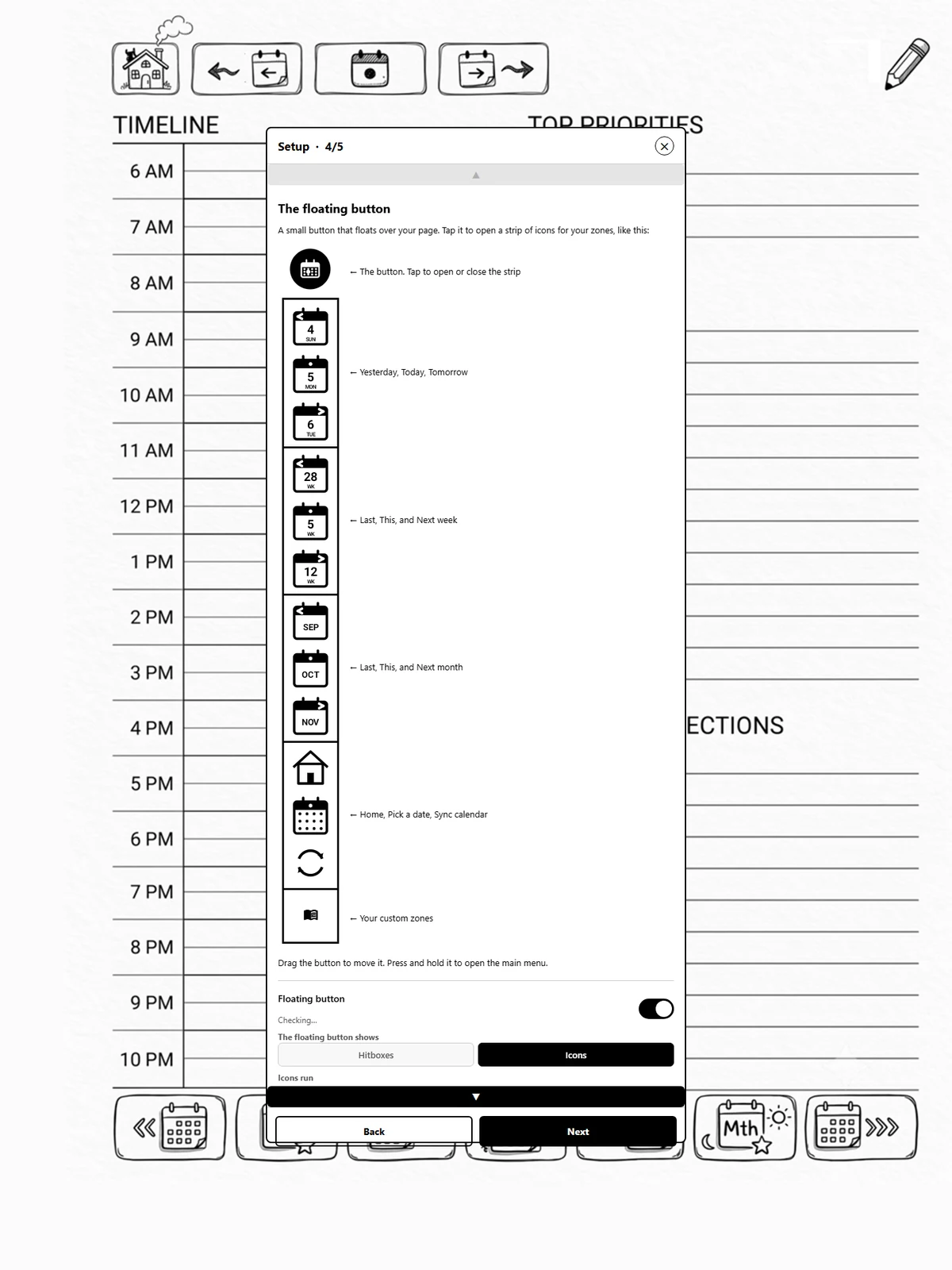
The floating button: what the strip holds, and the choices for it: down or across, and which icons to show. It is already switched on.
-
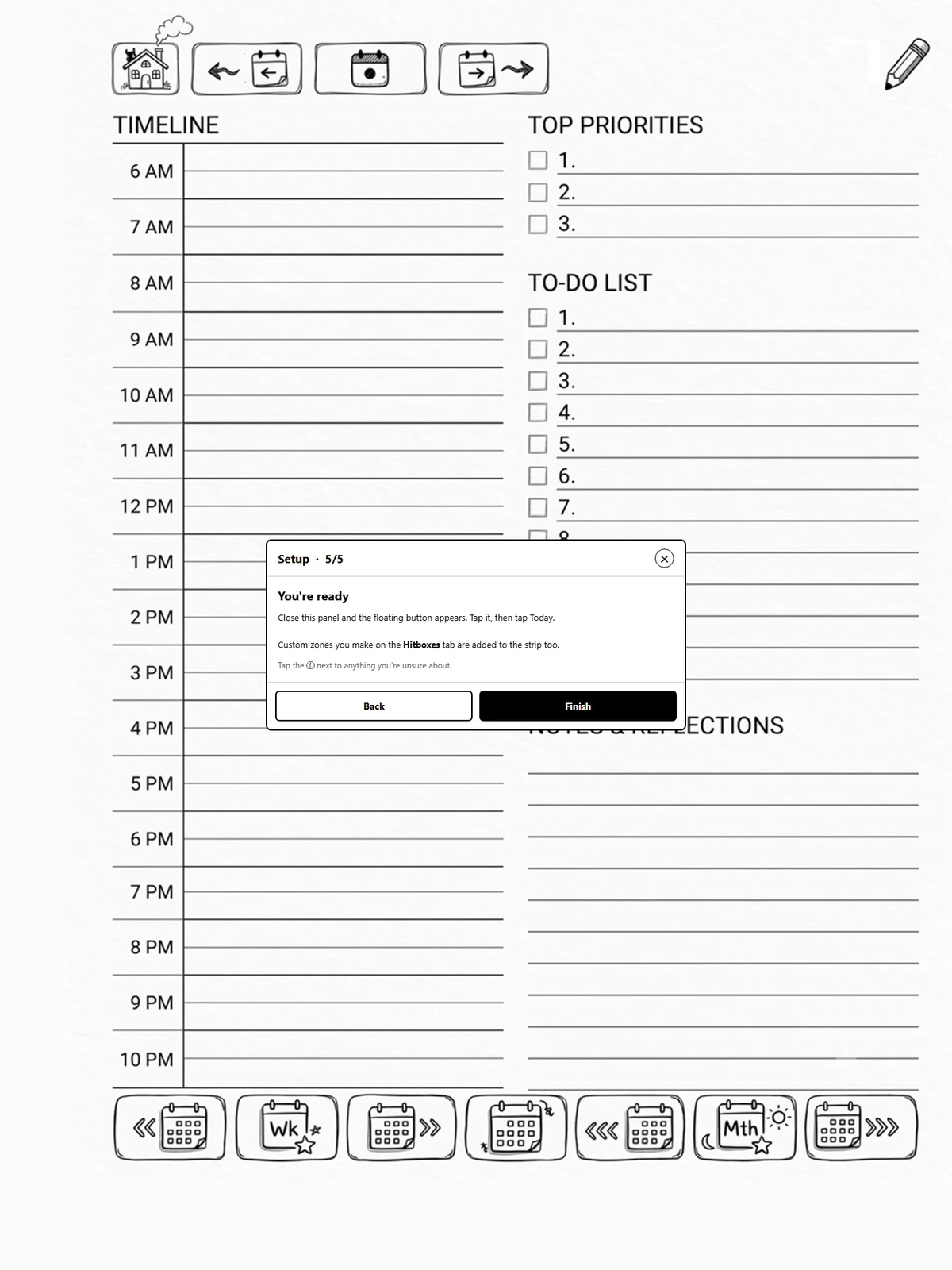
You're ready. Close the panel, tap the floating button, then tap Today.
The hitbox zones route
-
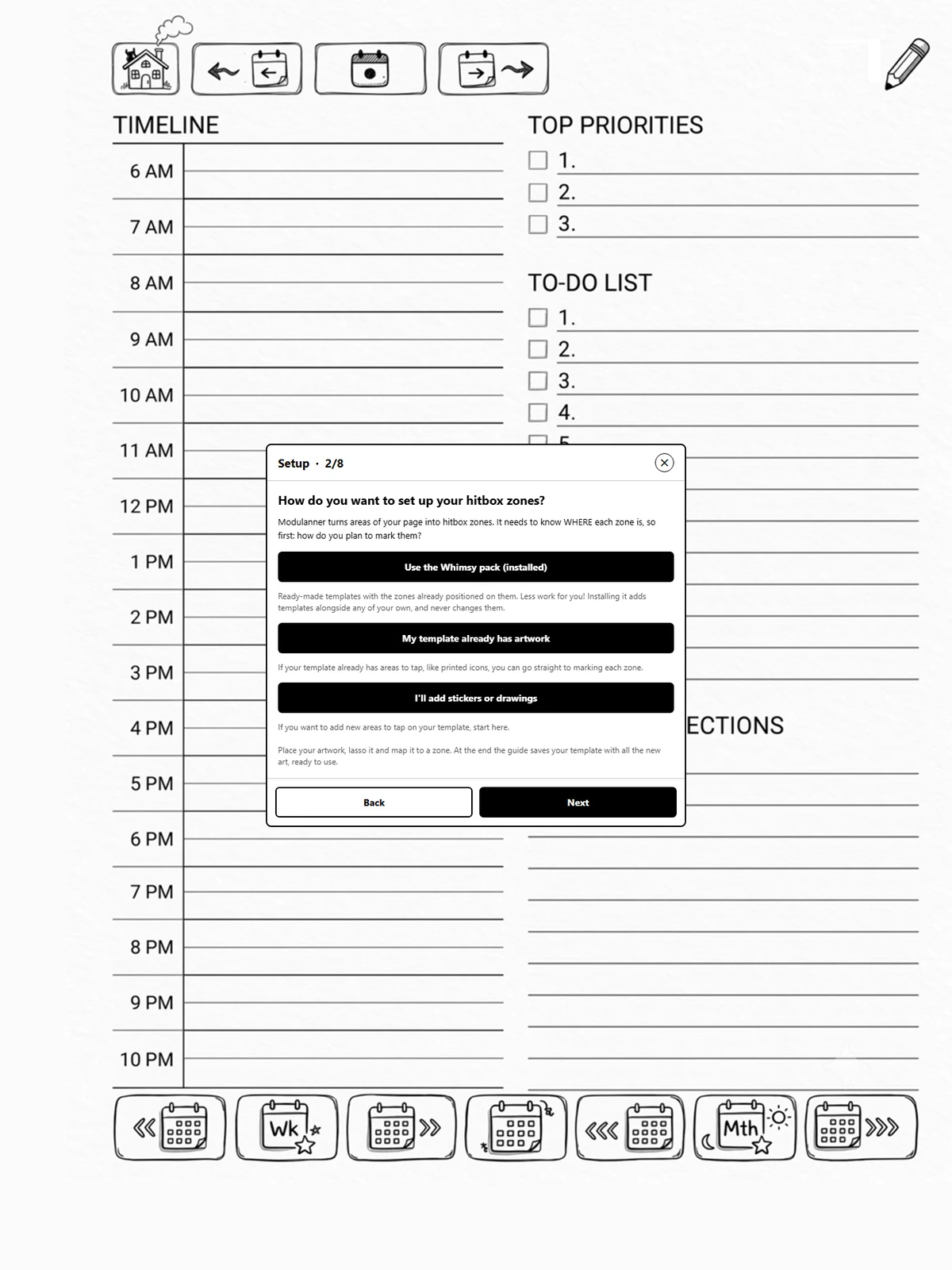
How do you want to set up your hitbox zones? The Whimsy pack (a ready-made set of templates with every zone already placed), my template already has artwork (you will mark where the zones are), or I will add stickers or drawings (put your own artwork on the page, then map it).
-
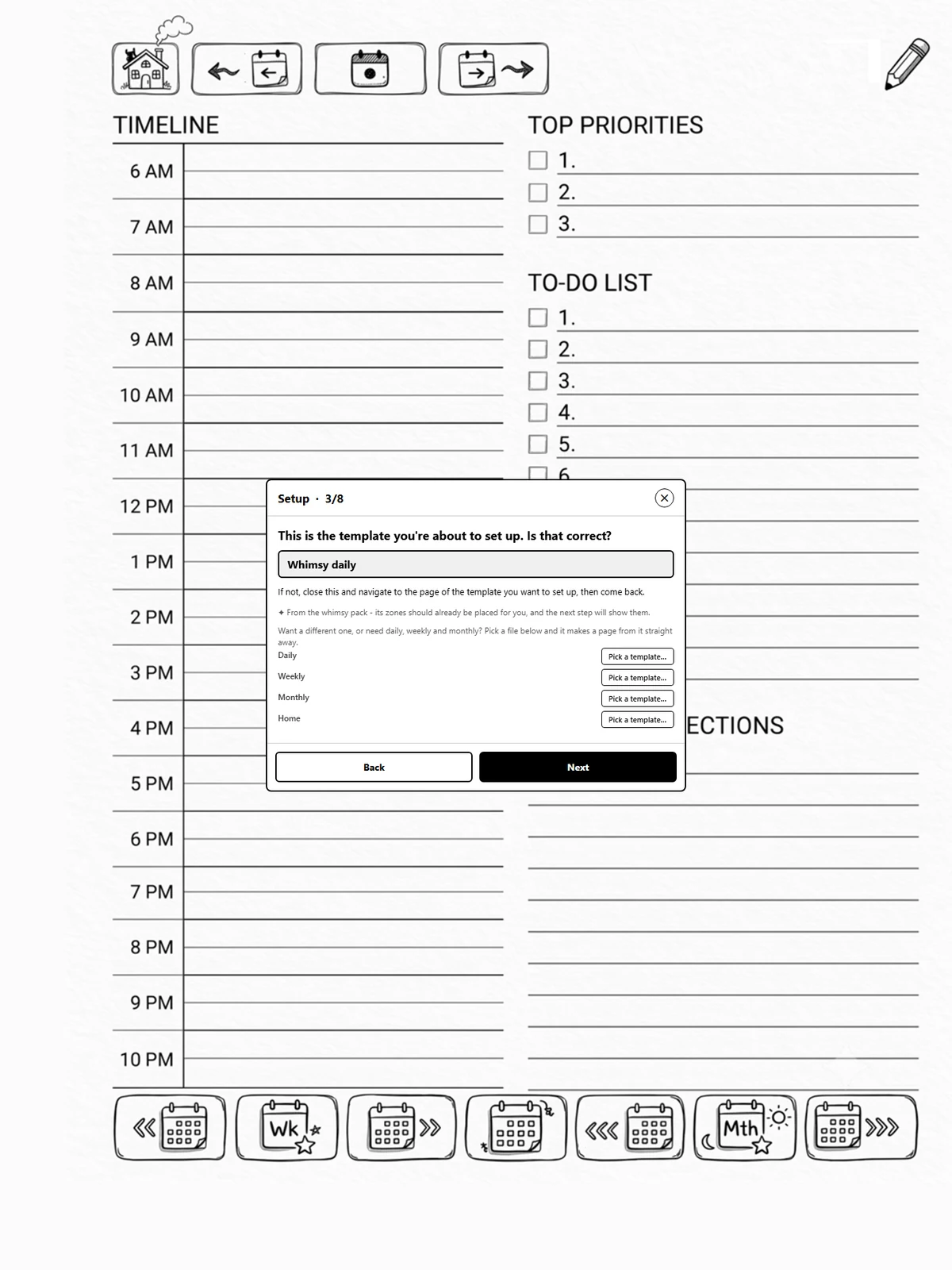
Is this the right template? The wizard names the template of the page you are on and asks you to confirm it. If it is not the one you meant, close the panel, go to the right page, and come back. Picking the Whimsy route here creates your daily, weekly and monthly pages, dated to today, and lands you on the daily one.
-
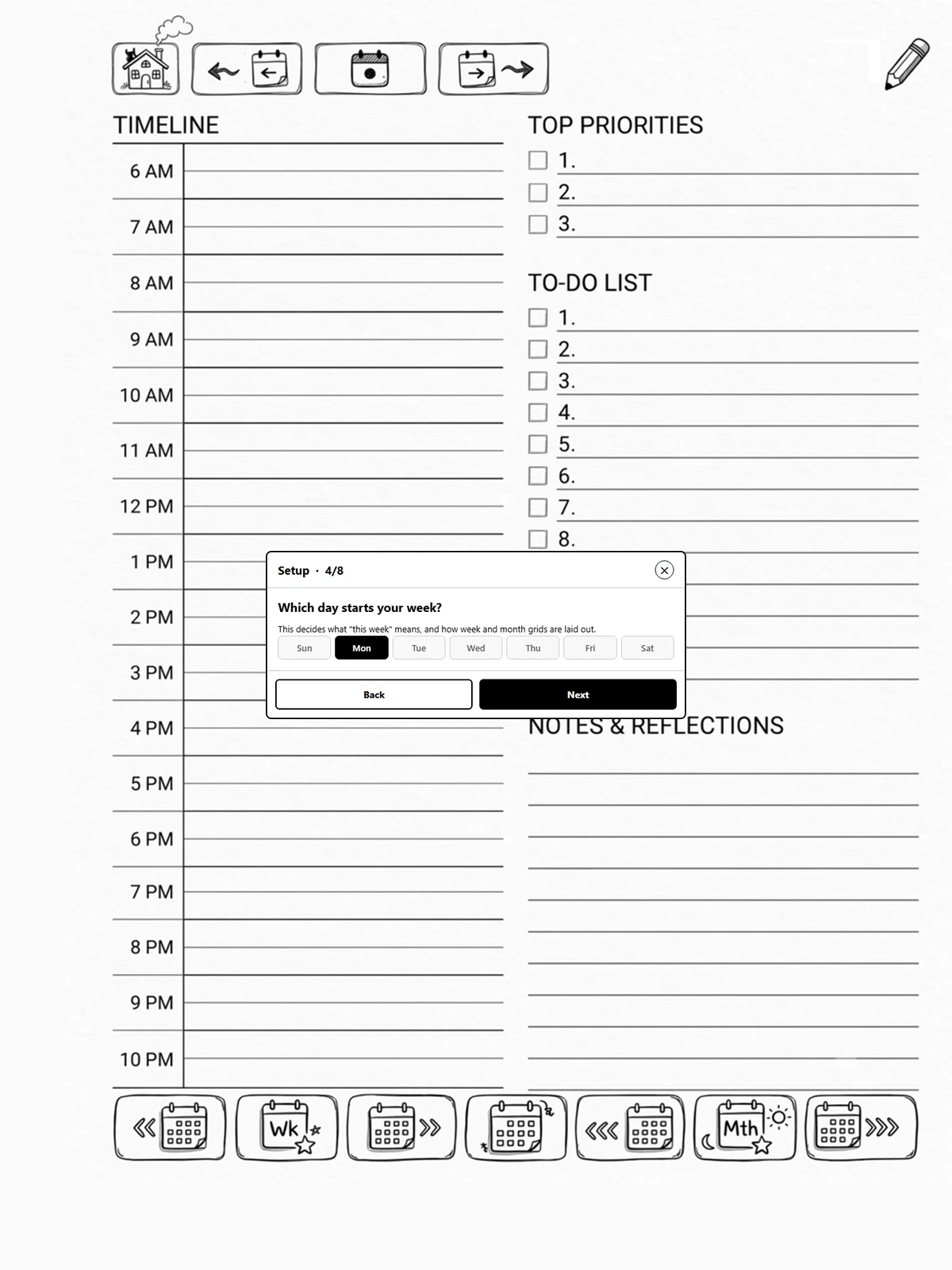
Week start: which day your week begins on.
-
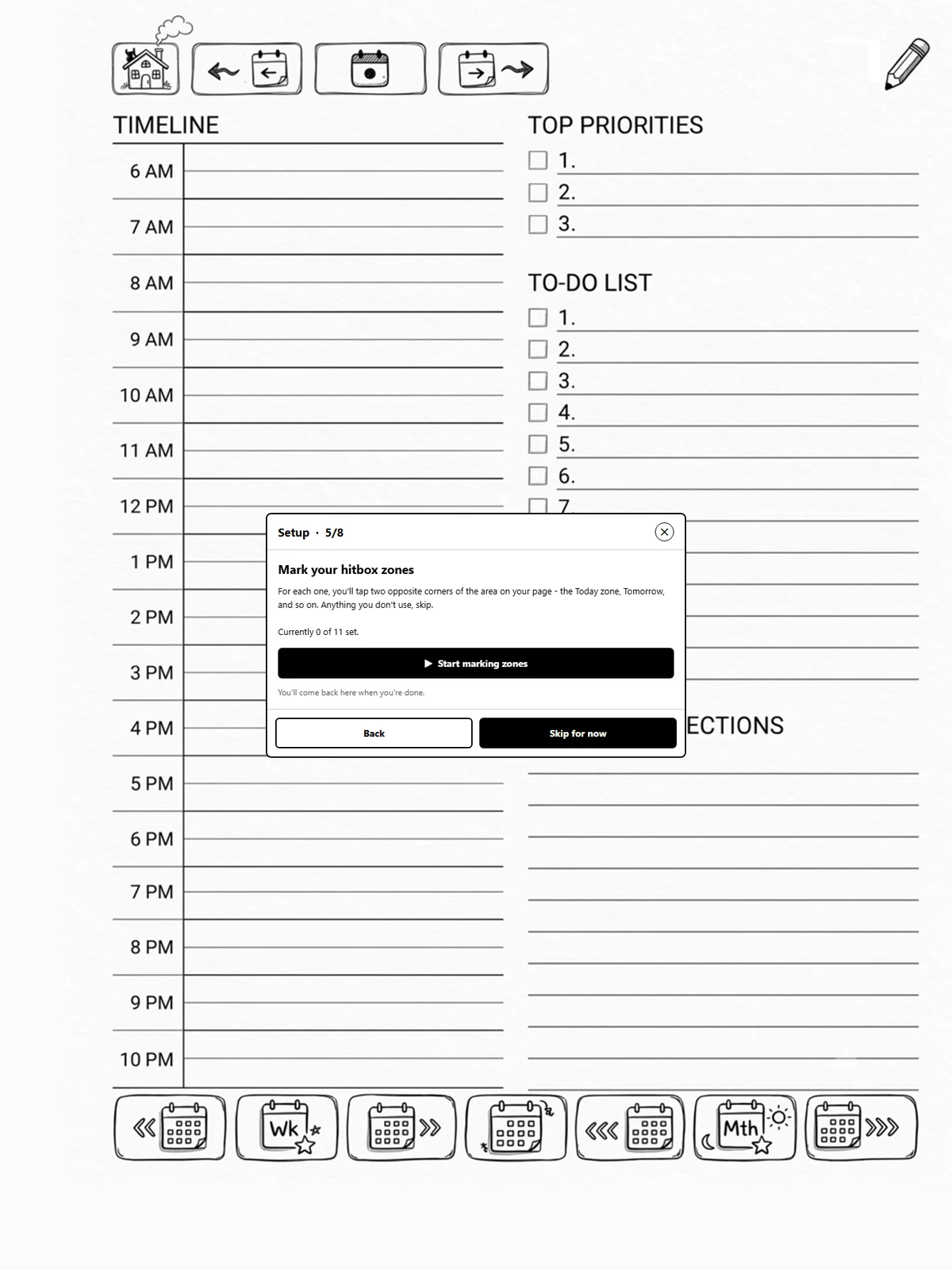
Mark your hitbox zones: hands you into the two-tap mapping flow for each zone in turn and brings you back when you are done.
-
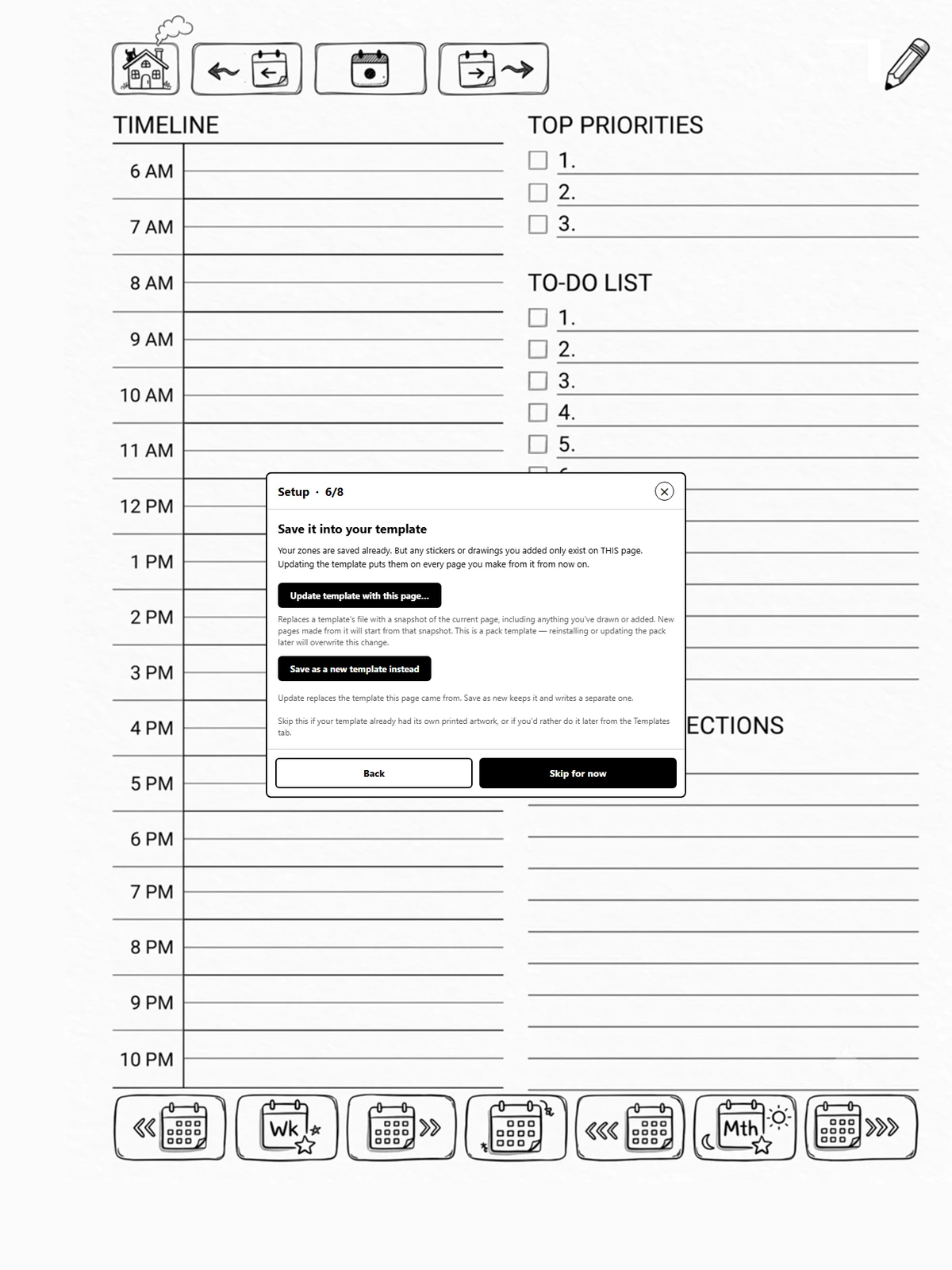
Save it into the template: bakes whatever you drew or placed into the template, so every new page starts with it. You can Update the template this page came from, or Save as a new template and keep the original.
-
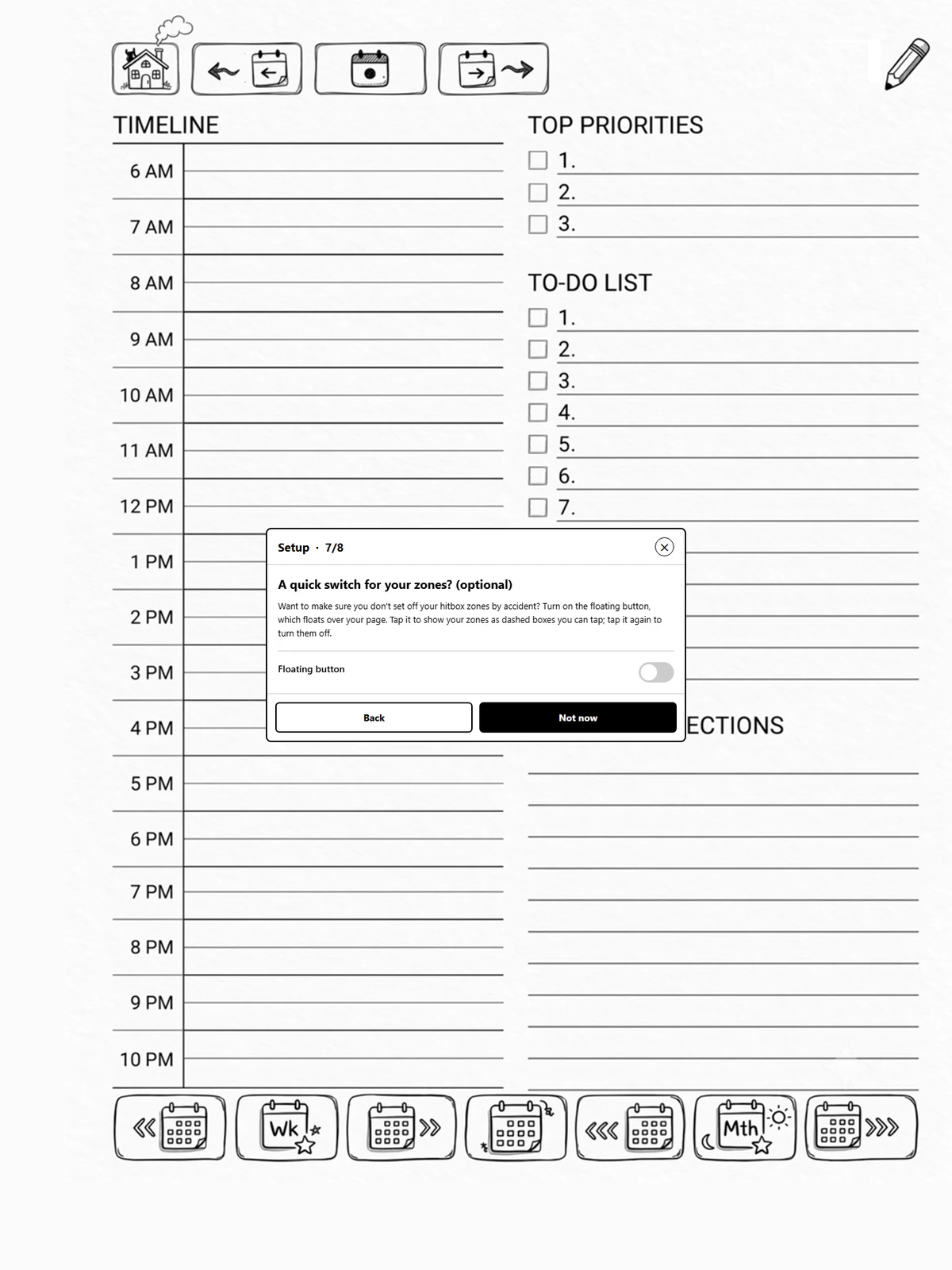
A quick switch for your zones? (optional): turn on the floating button if you want to make sure you don't set off a zone by accident. Tap it to show your zones as dashed boxes you can tap, and tap it again to turn them off. Leave it off and your zones always work.
-
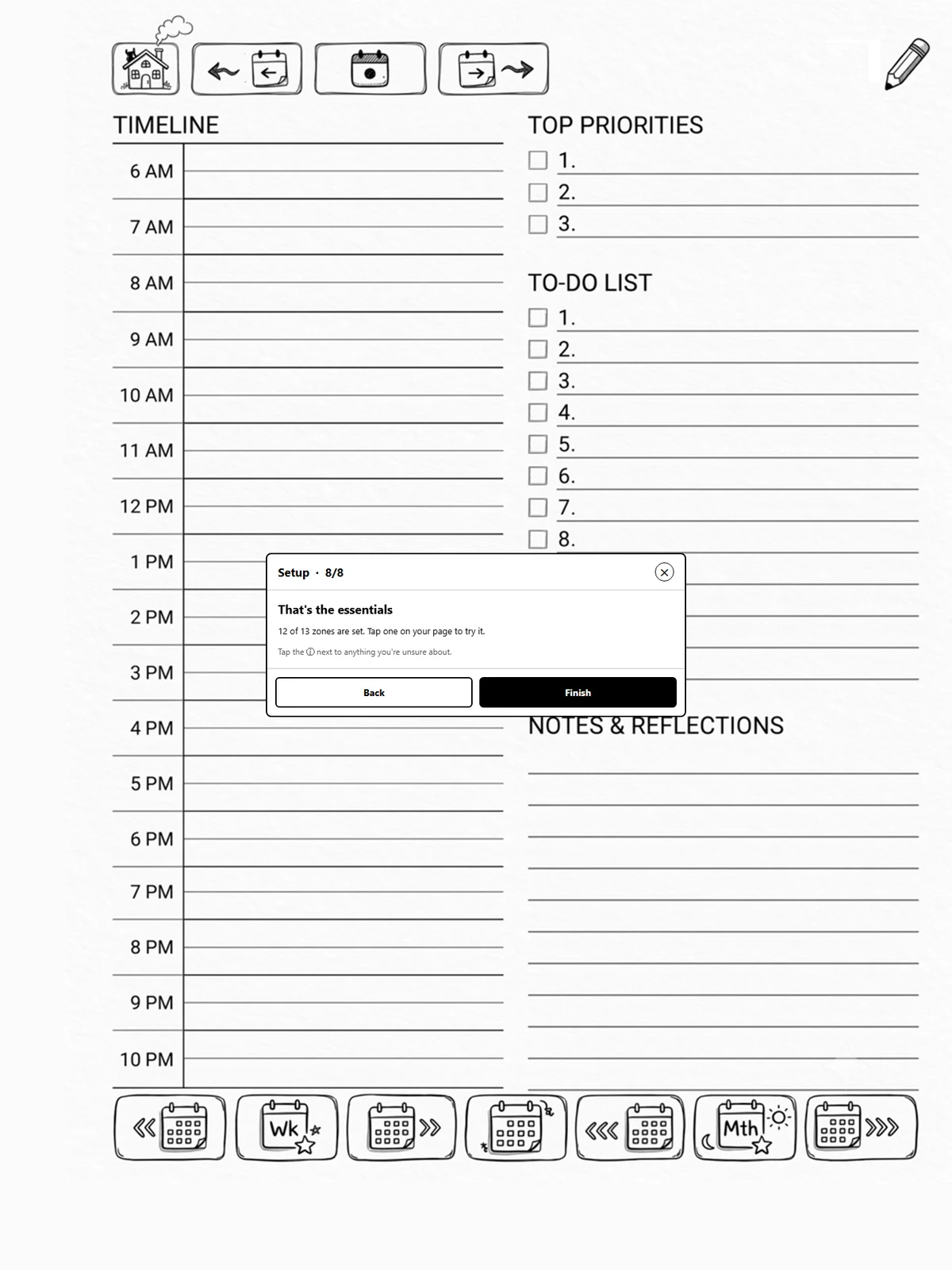
Done.
The sticker route
If you chose stickers or drawings, the wizard sends you out to place them, then
back to map each one with Map to zone (page 1.11).
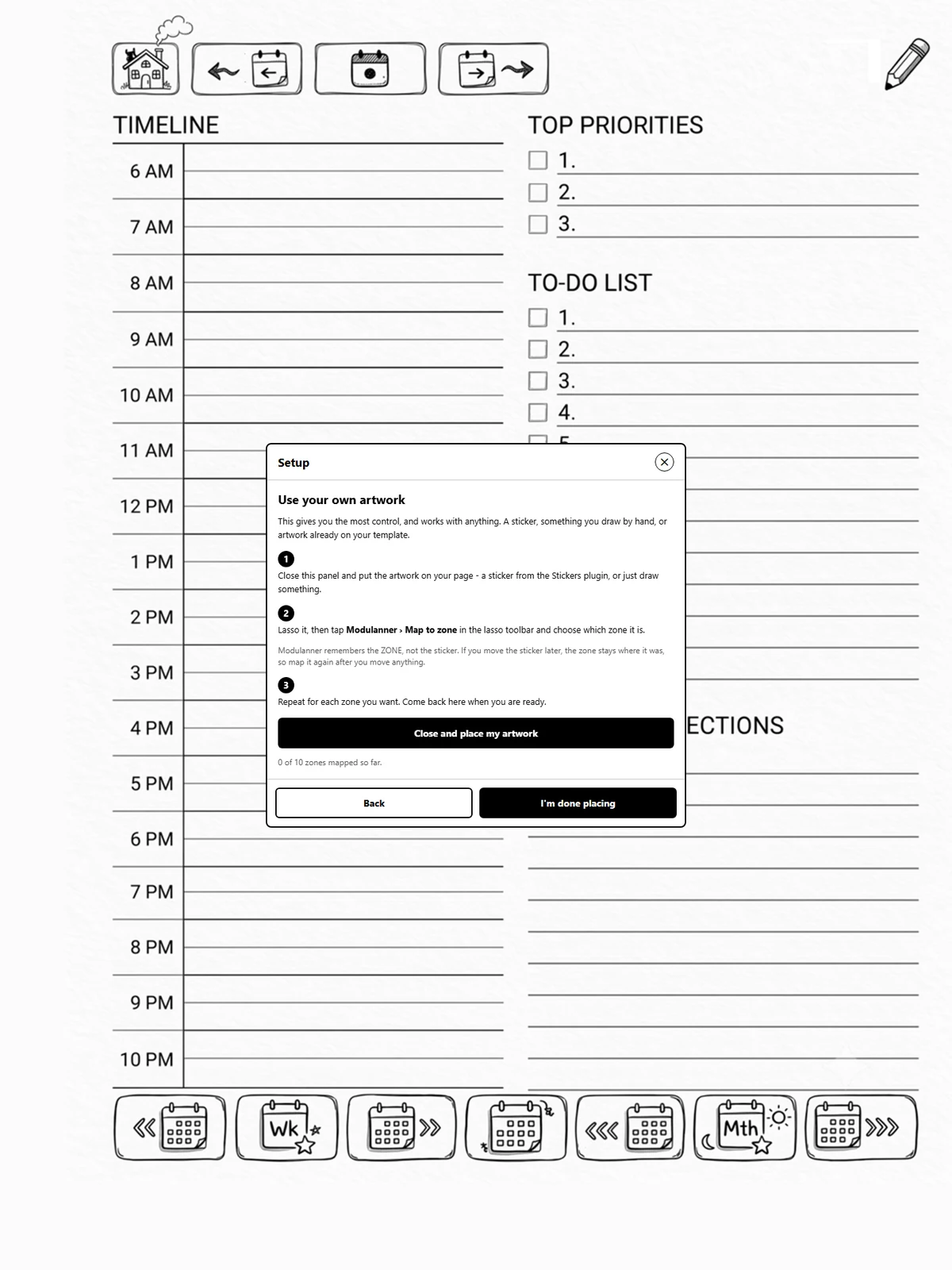
Modulanner remembers the zone, not the sticker
Moving a sticker later leaves the zone where it was. Map it again after you move anything.
Leaving and coming back
You can close the panel at any step and pick up where you left off. Skip tutorial, on the first step, turns the walkthrough off for good; it stays available under Settings.
Installing Whimsy is additive
It adds templates alongside whatever you already have. It never replaces or changes your own.
Do this on the right page
On the hitbox zones route, be on a page that uses your planner template, in portrait. The wizard maps zones onto whatever page is underneath it, so starting from a blank note means mapping zones onto a blank note.