See every hitbox zone at once
HITBOXES TAB
Rather than tapping each zone to find out where it is, this draws every mapped region on the page, labelled. It is the fastest way to check your work.
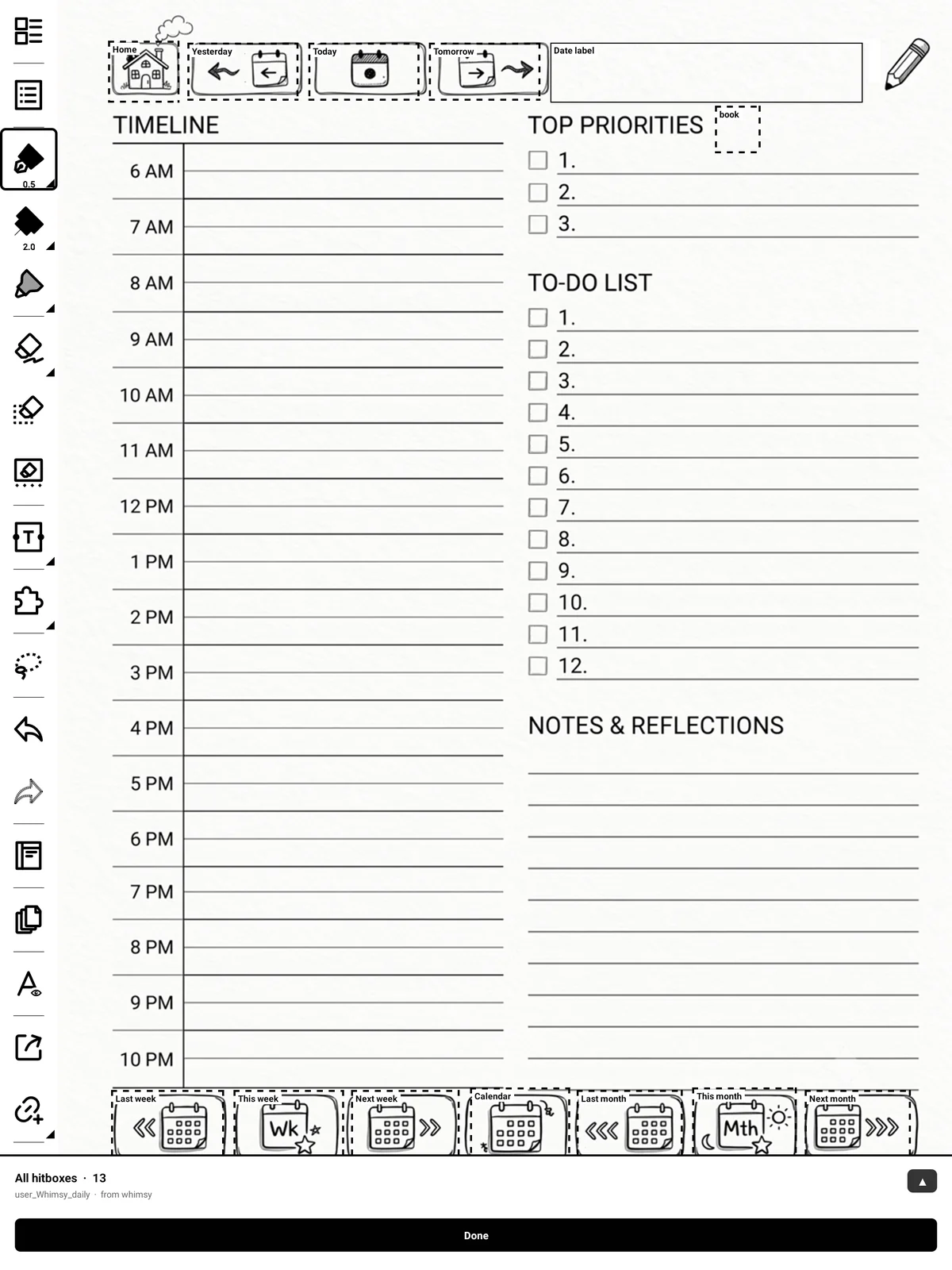
What is shown
-
The standard zones, your custom ones, and the date label area. Zones that came from a pack are included.
-
Calendar time slots too, drawn more lightly than zones, because a month grid is 42 of them and at full weight they drown everything else out. A slot that responds to taps is drawn heavier and marked with a small arrow.
-
The date label area has a solid outline rather than a dashed one, because it is not tappable.
-
Custom zones you have not placed on this template do not appear. That is expected; see page 2.1.
Nudging something into place
Tap a region to select it, then:
-
Move: each tap on the page puts the box's top-left where you tapped, keeping its size. Tap as many times as you need, then Done, save position.
-
Edit (time slots only): redraw the box completely with the two-corner flow, which is the only way to change a single slot's size.
-
Reset (time slots only): drop a hand-placed slot back to where the grid says it should be.
Dragging was deliberately not used
Every frame is an e-ink refresh, so a dragged box lags the pen and ghosts. Repeated taps give one clean refresh per attempt and cost nothing to redo.
Overlapping zones: 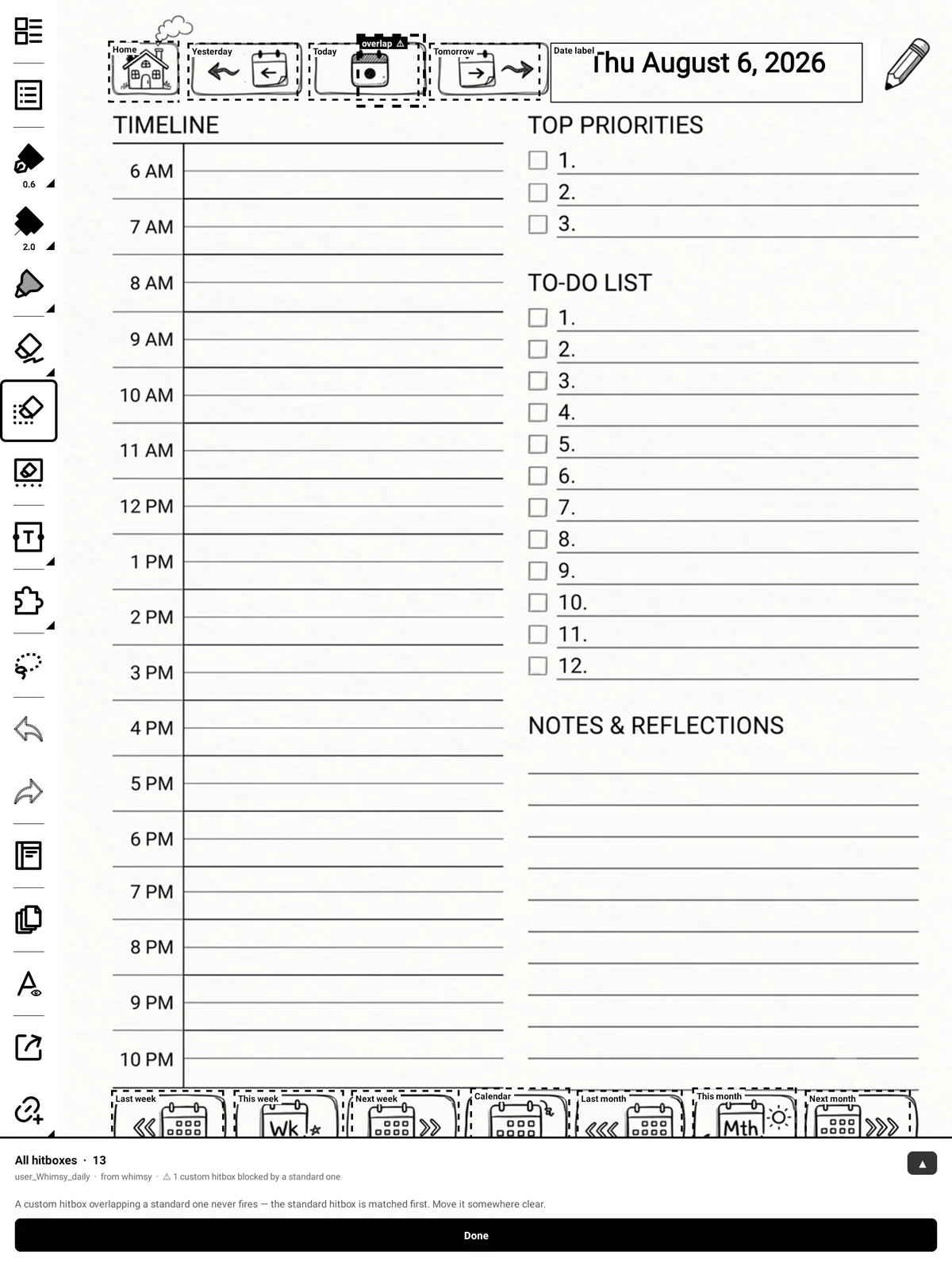 If one of your custom zones overlaps a standard one, it is marked with a
heavy outline and a warning. The standard zone always wins, so the custom one
will never fire. Move it somewhere clear.
If one of your custom zones overlaps a standard one, it is marked with a
heavy outline and a warning. The standard zone always wins, so the custom one
will never fire. Move it somewhere clear.