Bake a change into your template
PLANNER SETUP
Draw an icon, add a sticker, tidy up a line — then make it part of the template so every future page has it.
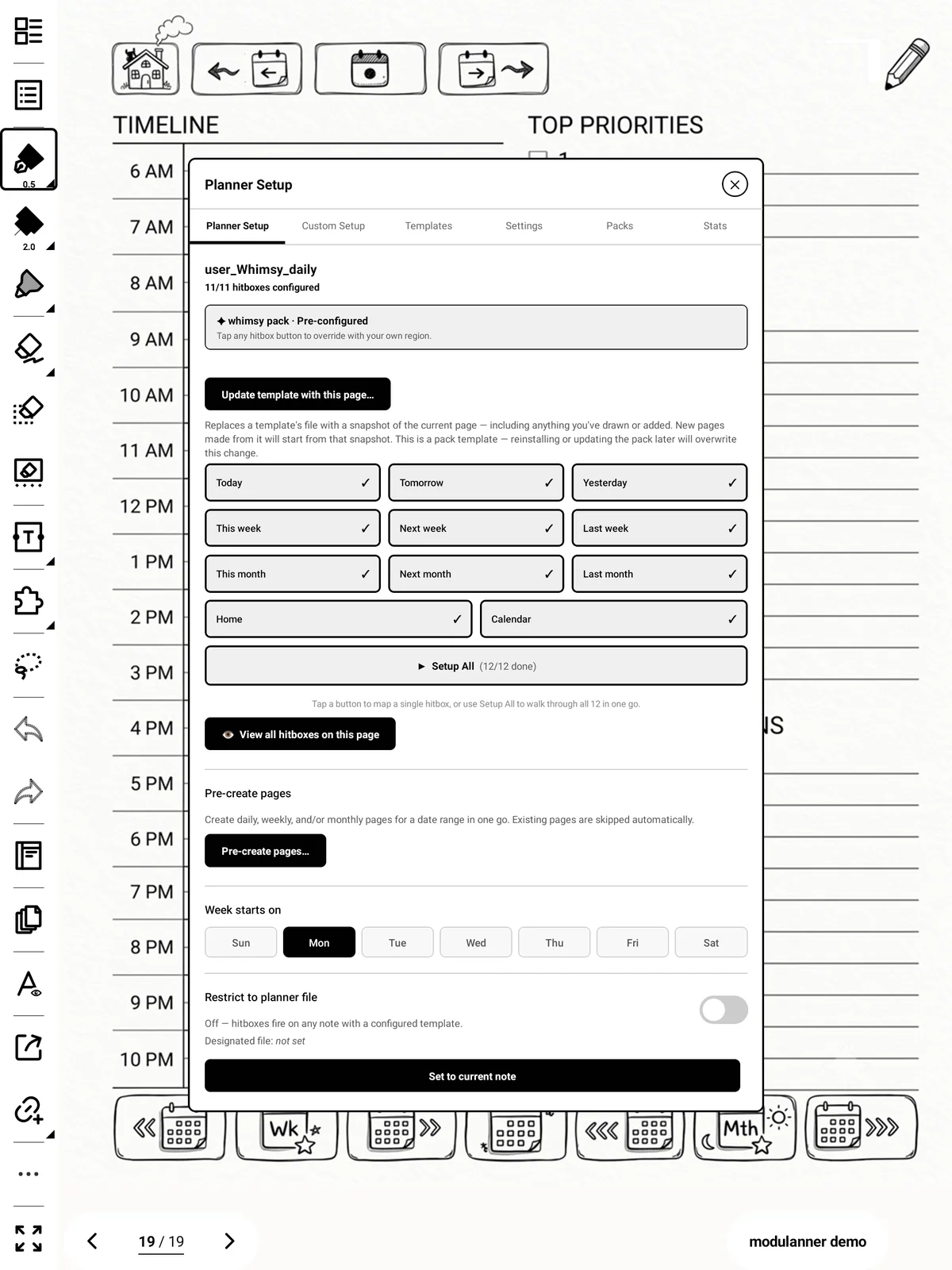
Steps
-
Go to a page made from the template you want to change, and draw on it.
-
Open Planner Setup and tap Update template with this page…
-
Tap again to confirm.
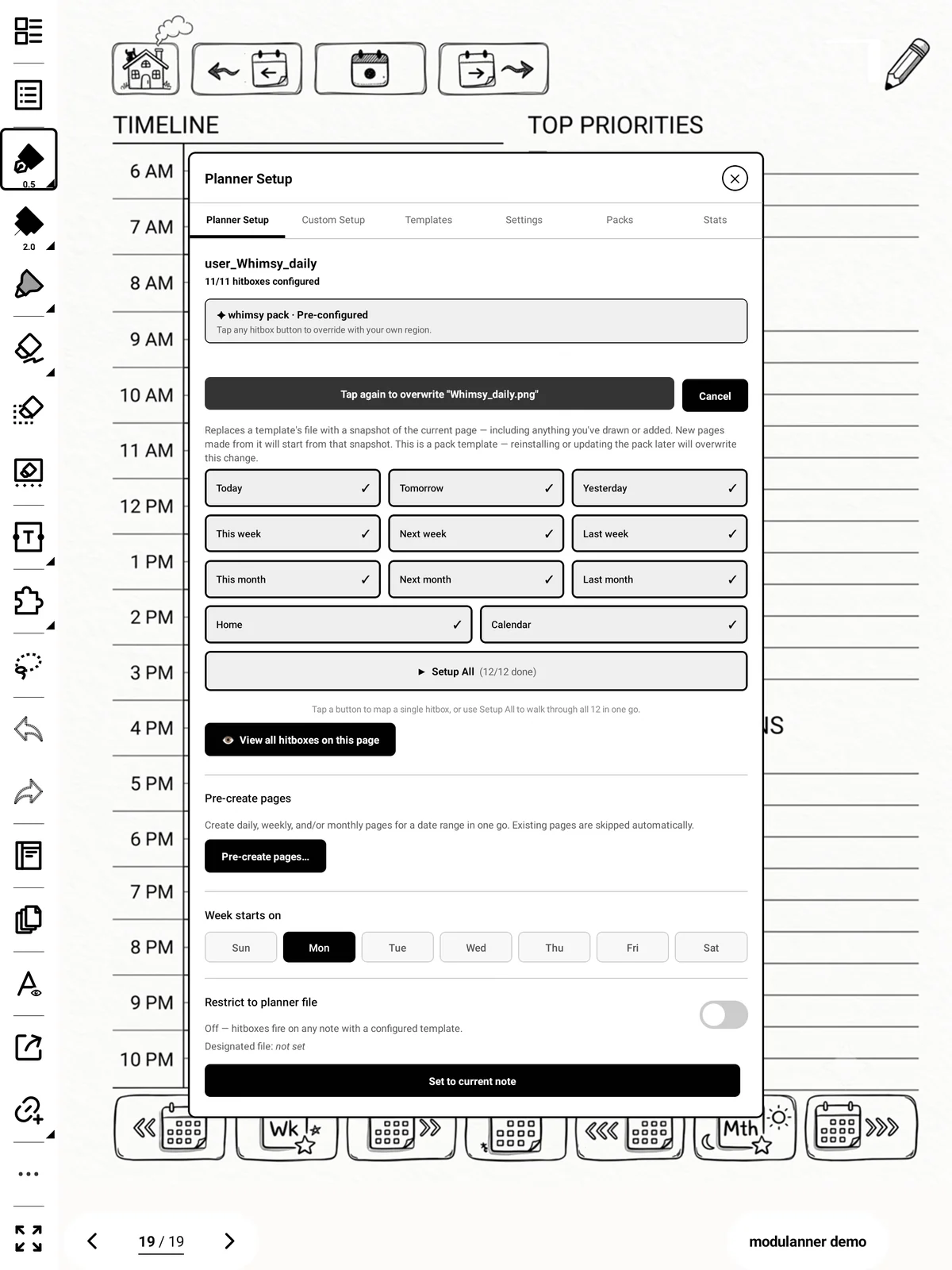
Warning: This replaces the template file. Existing pages are untouched, but every new page from that template will look like this one.
Callout — pack templates: If the template came from a pack, you'll see an extra warning. Reinstalling or updating that pack later will overwrite your change.