The icon strip
FLOATING BUTTON
In Icons mode, tapping the floating button opens a strip of icons beside it. Tap an icon to go there; Modulanner makes the page if it does not exist yet, from the template set for that kind of page. Tap the floating button again to close the strip.
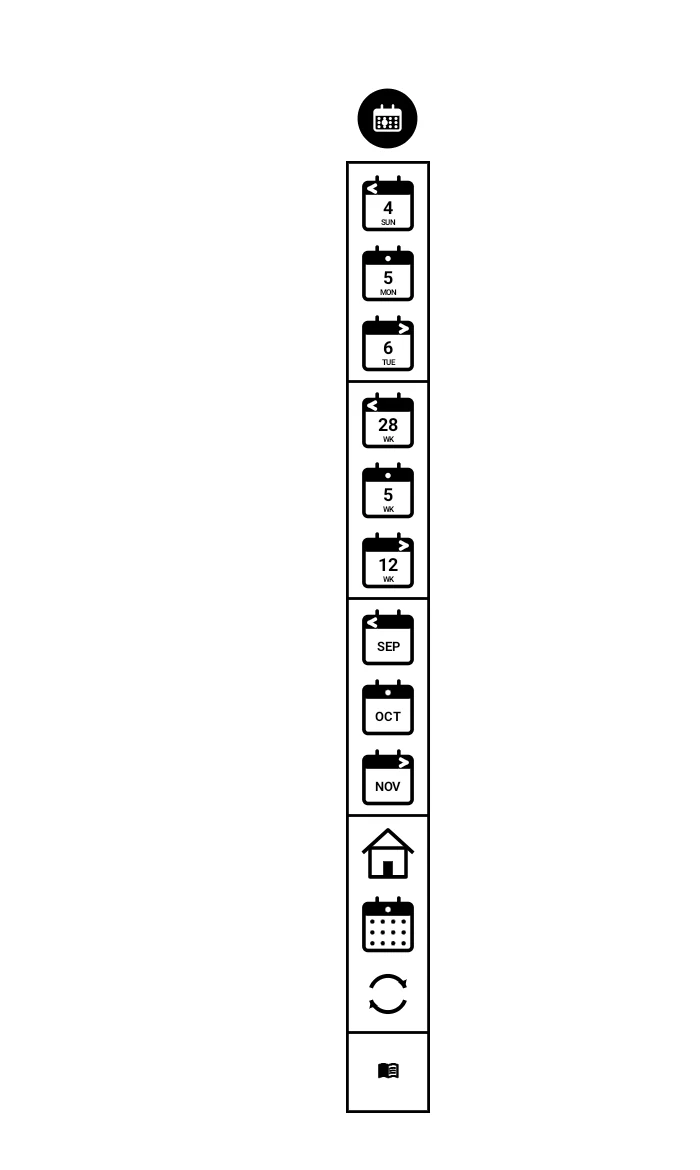
What is on it
Top to bottom (or left to right), with a line between each group:
- Days: yesterday, today, tomorrow.
- Weeks: last, this and next week.
- Months: last, this and next month.
- Home, the date picker, and sync calendar.
- Your custom zones (page 1b.2).
The date icons show the real dates: the day and weekday, the first day of the week, or the month. The mark at the top of each says which way it goes: ‹ for the past, ● for now, › for the future.
The light version shows the free zones only. The date picker, calendar sync and custom zones come with the full version.
Choosing what it shows
Options, Floating button, Choose which icons to show… lists every icon.
Tap one to hide or show it. 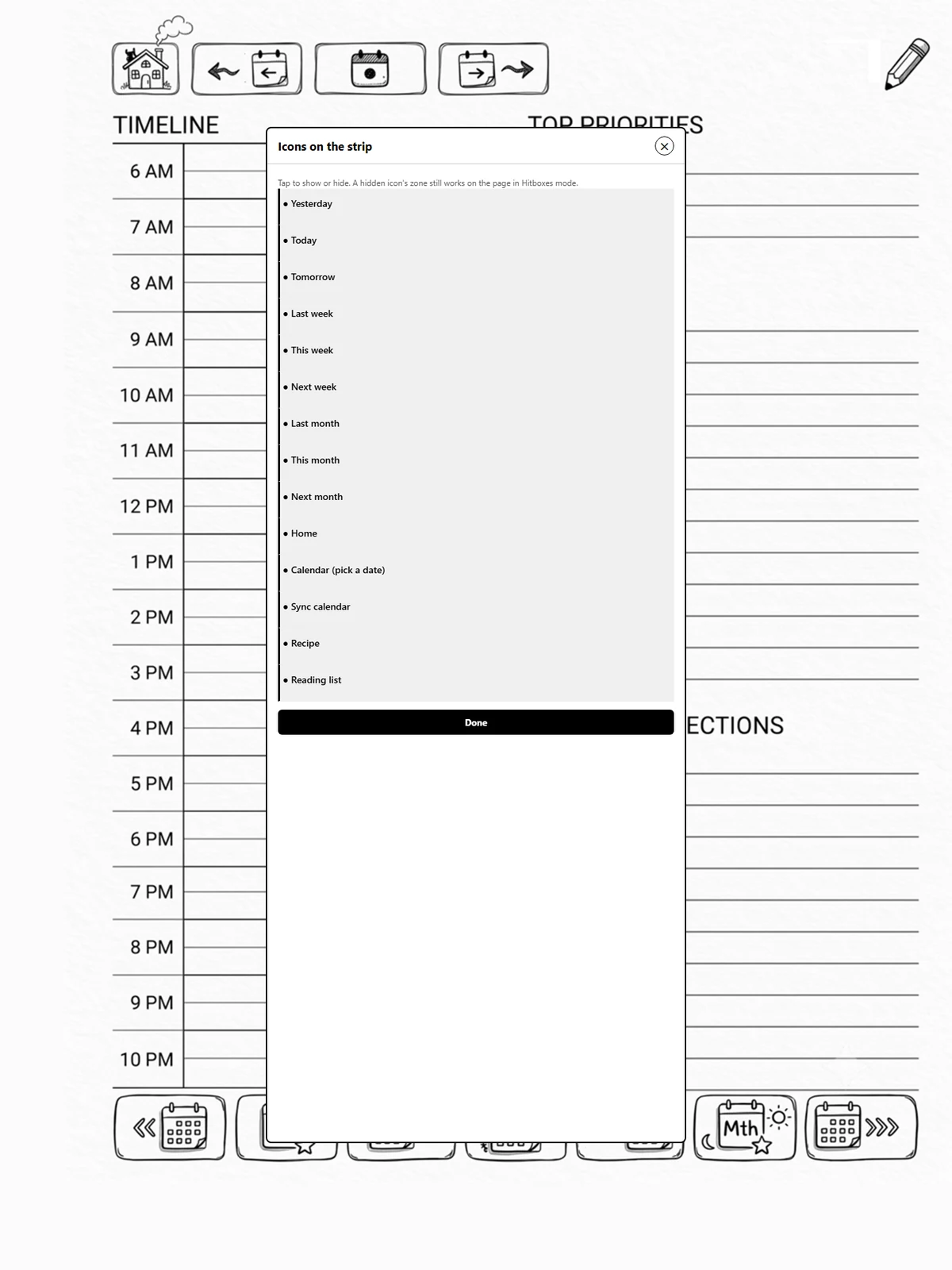
Icons run sets the direction: down (a column under the button) or across (a row, opening towards the middle of the screen). Either way the strip moves with the button when you drag it.
From another note or a PDF
The strip always takes you to your planner, just like the Today toolbar button. Tap a day, week or month icon in any other note, or in a PDF, and Modulanner opens your planner file at that page. Restrict to planner file does not stop this: it only keeps stray taps on other pages from setting off your hitbox zones, and a tap on the strip is never stray.
- From a PDF it takes two steps you don't have to do anything for: your planner opens first, then it moves to the right page a moment later.
- Dates count from today there, whatever your date mode.
- The date picker, sync calendar and custom zones that add a page open your planner at today's page; tap the icon again there.
- Set your planner file first (Settings, Planner file). Without it, Modulanner treats whichever note you are in as the planner.
Calendar slots with a finger tap
In Icons mode your hitbox zones on the page do nothing, so you can write anywhere. If you also use tappable calendar slots (a week or month grid that opens a day, or a day grid that adds a page), you can keep those working:
Options → Floating button → Finger taps on calendar slots.
- Only a finger tap works. Pen taps on the page stay off, so writing in a slot never sets one off.
- Only slots you set to do something respond. Grids that just show your appointments stay as they are.
- Restrict to planner file still applies to these taps.
Dates and date mode
The icons always show dates counted from today. What a tap does follows your Date mode for the pen or finger you tapped with (page 4.2), exactly as a hitbox zone on the page does:
- Absolute: Tomorrow is the day after today.
- Relative: Tomorrow is the day after the page you are on. On a page with no planner date, you are asked to give it one (page 4.3).
Taps on the strip never erase anything
Erase tap mark cleans up the dot a pen tap leaves on the page. A tap on the strip leaves no dot, so nothing is erased.