Marking out your time slots
CALENDAR
Modulanner needs to know where on your template the appointments go. You do not draw every slot — you mark the block's two outer corners and say what shape it is, and the individual cells are worked out from that.
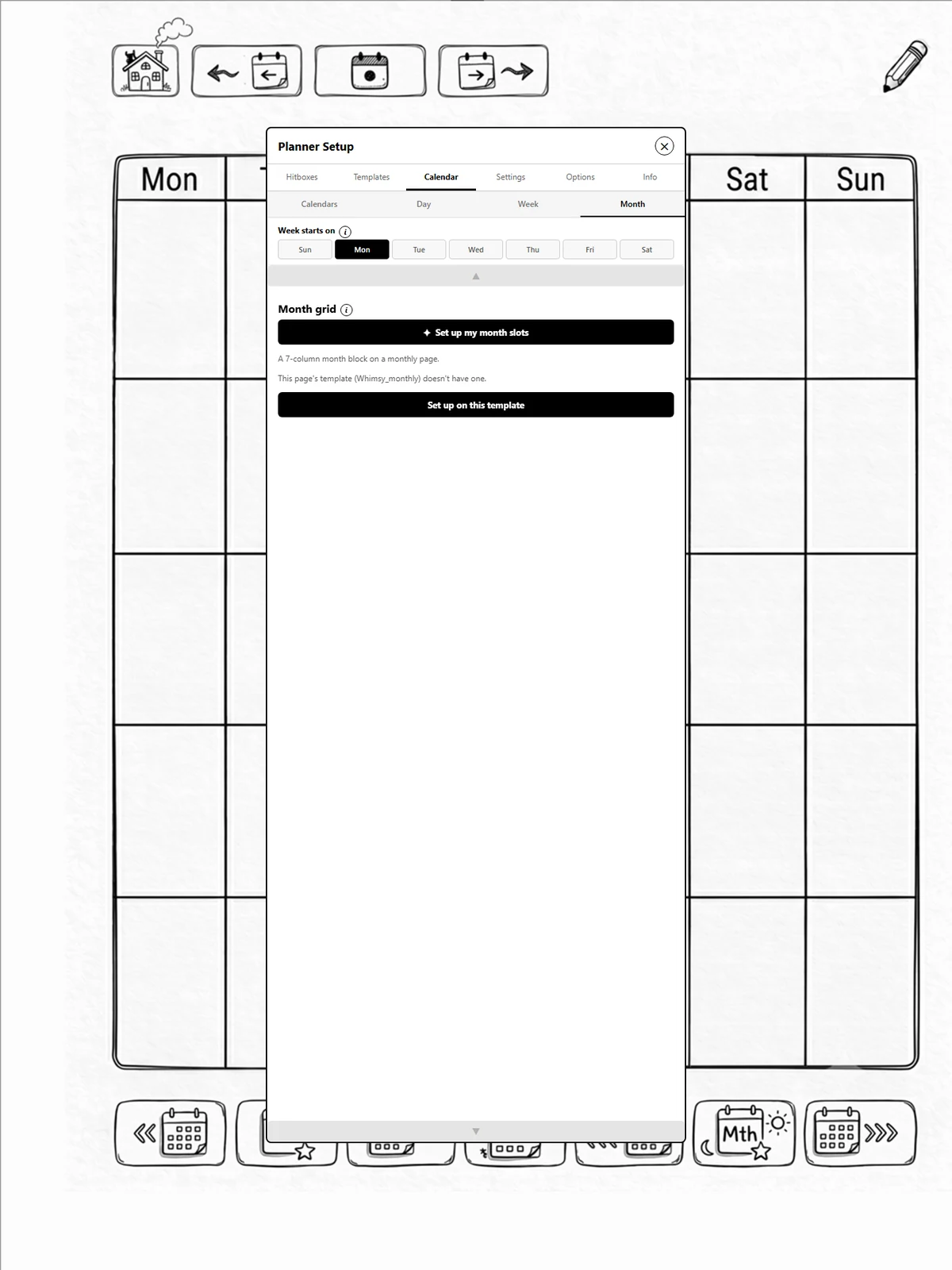
A month grid is 42 cells. Two taps sets it up.
There is a walkthrough for this
If you would rather be led through it one grid at a time, use the grid walkthrough at the top of the Calendar tab. See page 8.6.
Steps
-
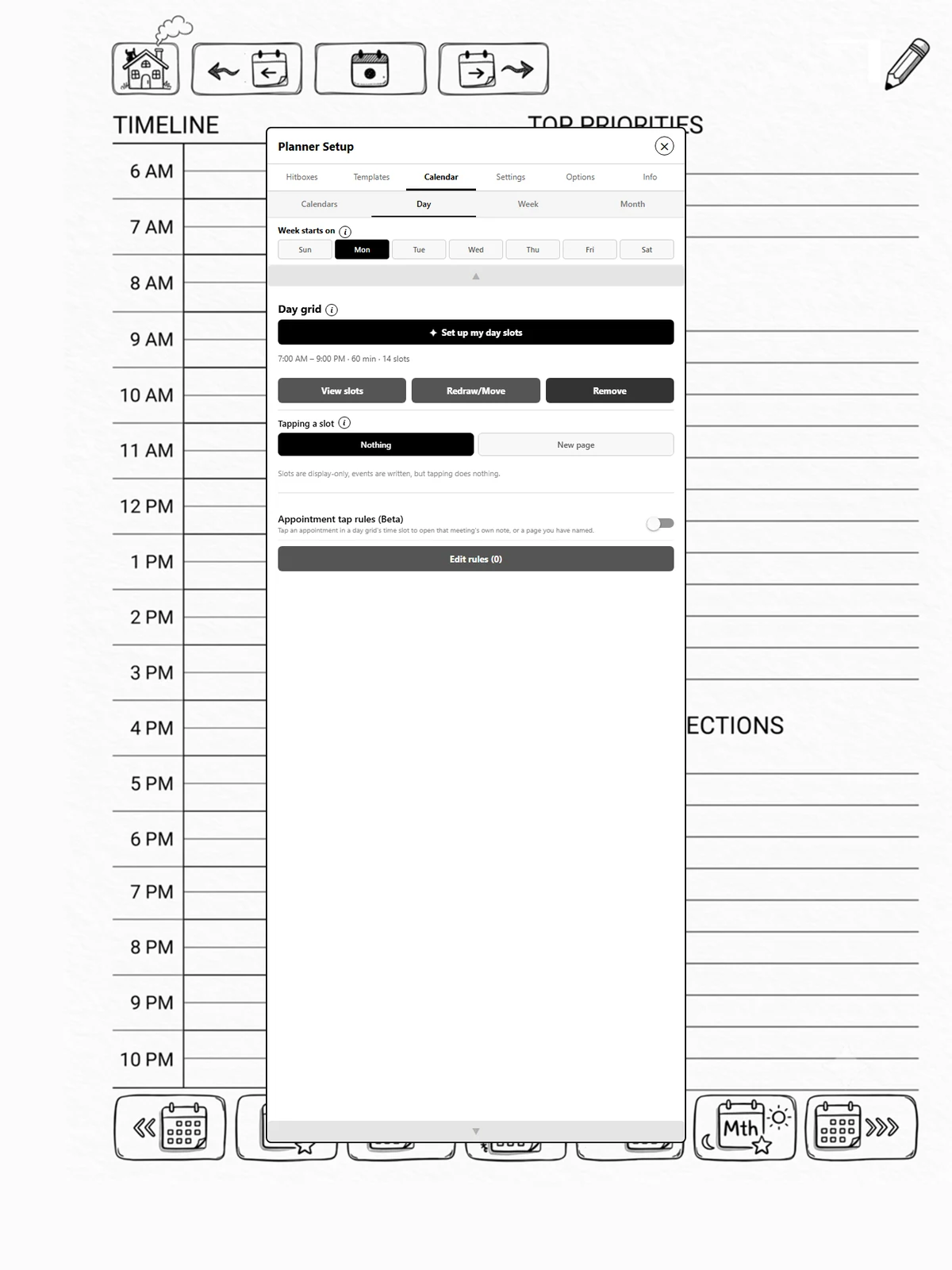
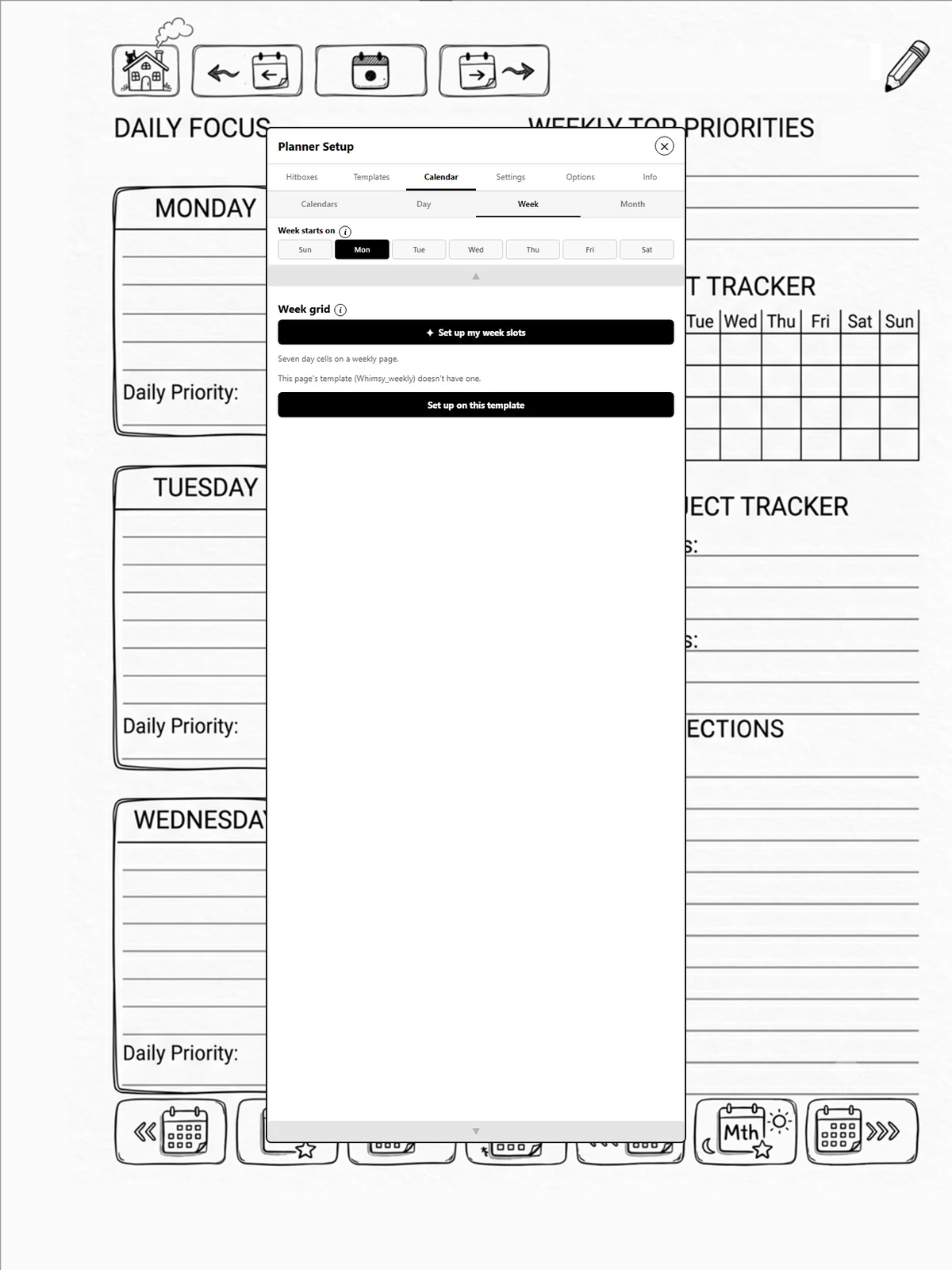
Calendar → Day, Week or Month, depending on which kind of page you are setting up. Each page carries the settings for that one grid.
-
Tap Draw the grid, then tap the top-left and bottom-right corners of the whole block of cells on your page.
-
Tell it the shape:
- Day — first hour, last hour, and 30- or 60-minute rows
- Week — 7 columns
- Month — 5 or 6 rows
That is it. Change the increment later and the cells re-derive instantly — nothing you drew is thrown away.
Checking and fixing individual cells
Tap View slots to see every derived cell drawn over your page.
Select one and you get three actions:
- Move — re-place it by tapping where its top-left should go. Keeps its size. Tap as many times as you like, then Done.
- Edit — redraw it completely, both position and size, with a fresh two-tap.
- Reset — throw away your changes and go back to the derived position.
When you'll need this: the cells are worked out by dividing the block evenly. If your template has an uneven row — a taller morning block, say — the derived cells will not line up and you can correct those individually.